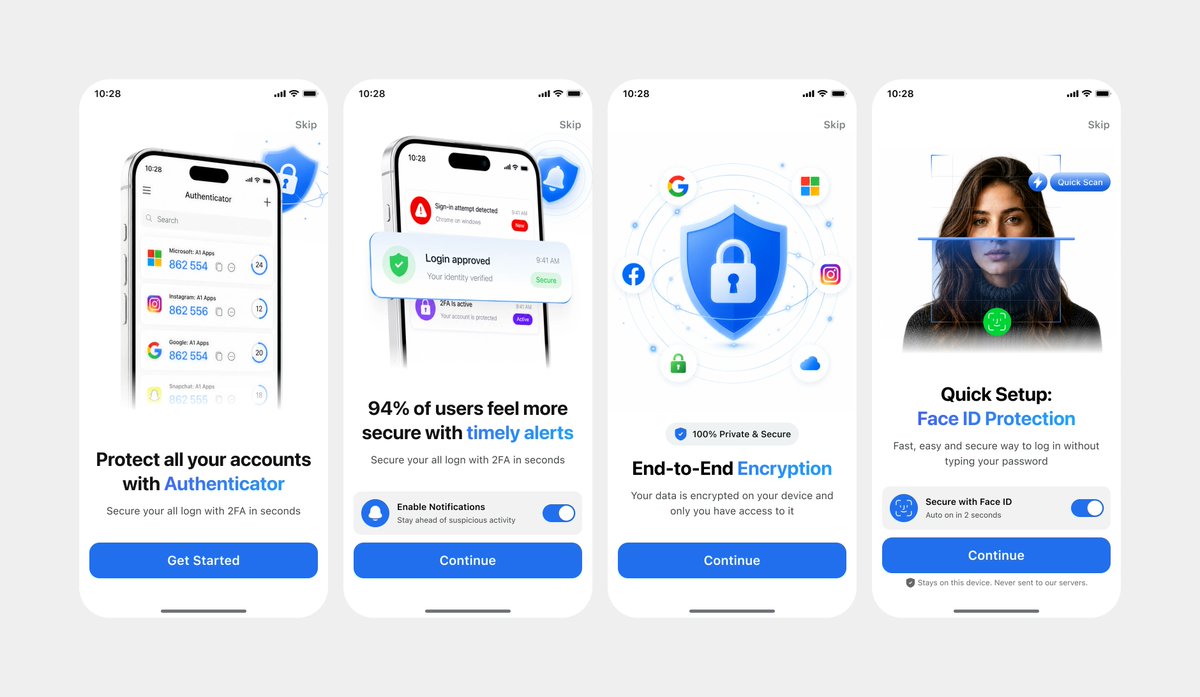
프롬프트/GPT Image 프롬프트/프롬프트 세부 정보이미지 프롬프트클린 인증 앱 온보딩 UI앱 프레젠테이션 또는 디자인 반복을 위해 촬영된 UI 참조에서 4개 화면의 세련된 모바일 인증 앱 온보딩 목업을 생성합니다.이 프롬프트는 참조 이미지와 함께 사용되었습니다이 프롬프트 사용좋아요5조회257북마크1이 프롬프트를 저장하거나 친구와 공유하세요.프롬프트 공유프롬프트복사Using REFERENCE_1 as the primary UI reference and REFERENCE_0 only for the darker variant details if needed, recreate the mobile onboarding flow as a clean, front-facing design mockup instead of a photographed laptop screen. Extract and straighten the four iPhone-style screens, remove all camera perspective, glare, browser chrome, laptop edges, and surrounding environment, and place the screens evenly spaced on a light gray canvas. Keep the same white/light theme, rounded phone cards, blue security branding, typography hierarchy, icons, illustrations, and CTA style. Produce exactly 4 onboarding screens from left to right: 1) authenticator accounts list with headline “Protect all your accounts with Authenticator” and CTA “Get Started”; 2) security alert notifications with headline “94% of users feel more secure with timely alerts” and CTA “Continue”; 3) shield/lock encryption illustration with headline “End-to-End Encryption” and CTA “Continue”; 4) Face ID quick setup with the portrait/scan graphic, headline “Quick Setup: Face ID Protection”, secure Face ID toggle card, small privacy note, and CTA “Continue”. Use {argument name="primary color" default="bright blue"} as the main accent color, keep the app name as {argument name="app name" default="Authenticator"}, and keep the status time as {argument name="status time" default="10:28"}. Make the result look like a polished Figma export/product presentation, crisp and high resolution, with no real-world photo artifacts.프롬프트 보기