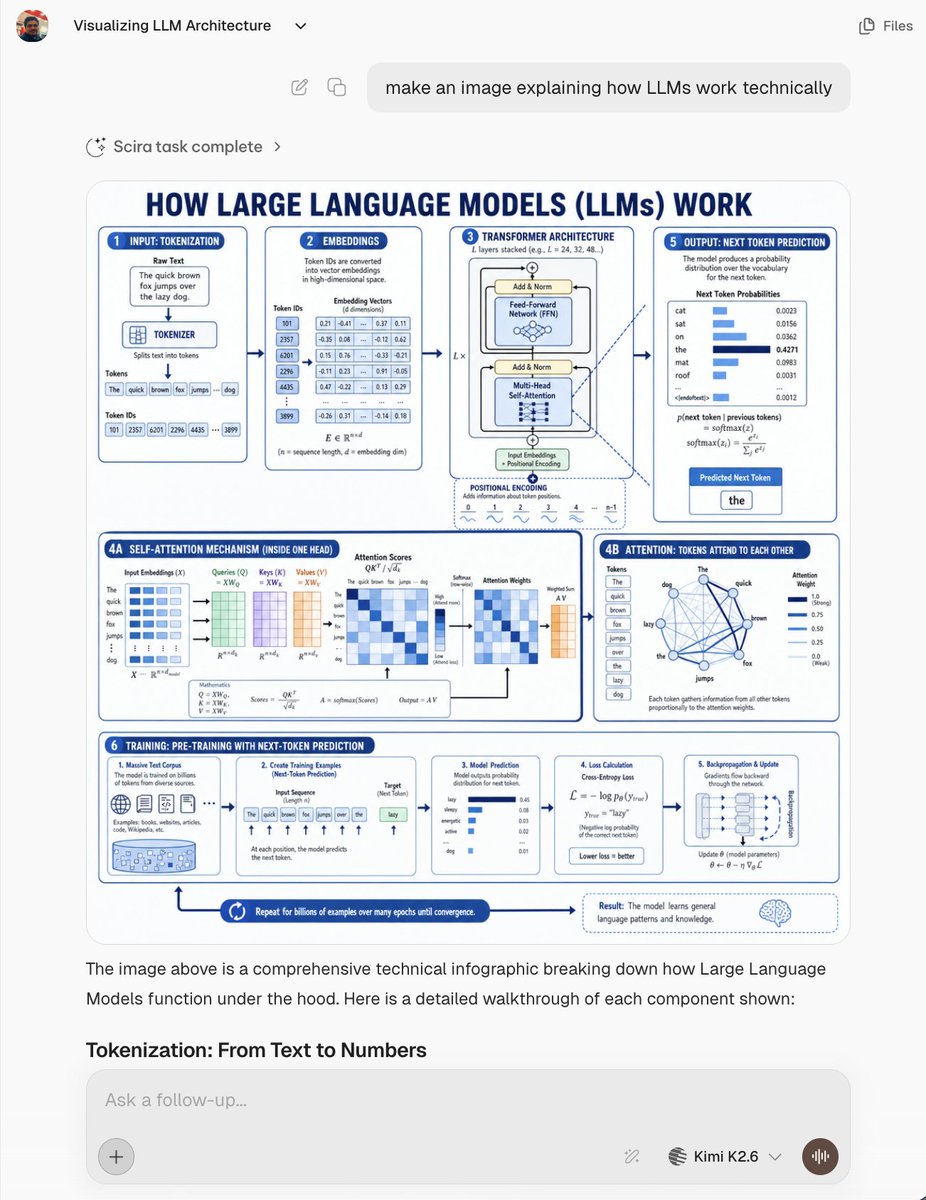
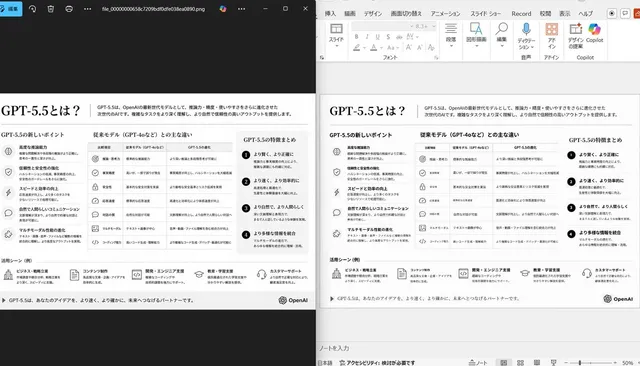
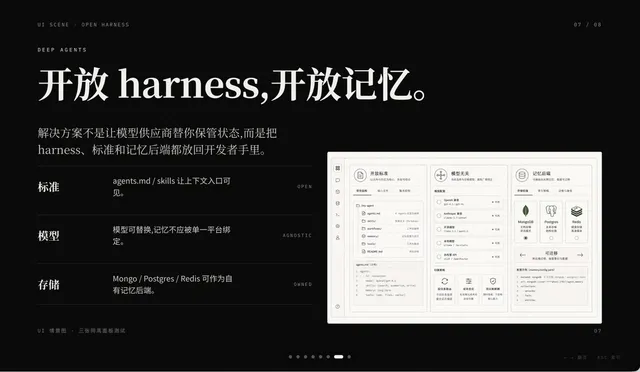
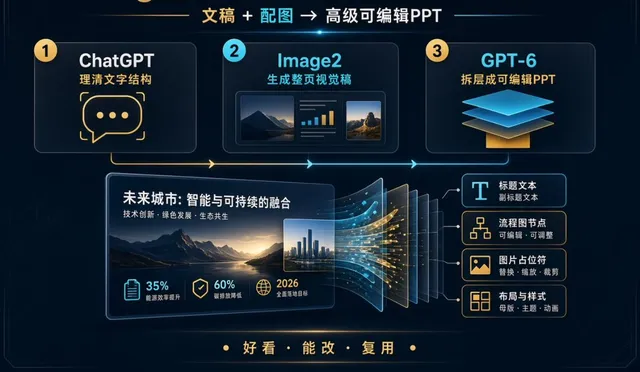
프롬프트/GPT Image 프롬프트/프롬프트 세부 정보이미지 프롬프트LLM 아키텍처 채팅 스크린샷대규모 언어 모델의 작동 방식을 설명하는 밀집된 파란색과 흰색 기술 인포그래픽이 포함된 사실적인 AI 채팅 스크린샷을 만듭니다.이 프롬프트는 참조 이미지와 함께 사용되었습니다이 프롬프트 사용좋아요28조회1,143북마크3이 프롬프트를 저장하거나 친구와 공유하세요.프롬프트 공유프롬프트복사Goal: Create a realistic screenshot of an AI chat interface showing a generated technical infographic about {argument name="topic" default="how Large Language Models (LLMs) work technically"}. The screenshot should look like a modern web app conversation, not a standalone poster. Canvas: 768×1024 vertical screenshot, light gray app background, rounded white content areas, clean sans-serif typography, subtle shadows, high-resolution but with the infographic text slightly small like a real embedded generated image. Chat UI layout: At the top left show a small circular user avatar, the chat title “Visualizing LLM Architecture” with a tiny dropdown chevron, and at the top right a simple “Files” label with an icon. Below, show a rounded user message bubble aligned near the top center/right containing: “make an image explaining how LLMs work technically”. Under it, show a small status row reading “Scira task complete” with a sparkle/loader icon and chevron. The main generated image appears below as a large rounded rectangle card. Beneath the image, include assistant explanatory text: “The image above is a comprehensive technical infographic breaking down how Large Language Models function under the hood. Here is a detailed walkthrough of each component shown:” followed by the bold section heading “Tokenization: From Text to Numbers”. At the bottom, show a rounded input box with placeholder “Ask a follow-up...”, a plus button on the left, small tool/model controls on the right, the model label “Kimi K2.6” with a dropdown, and a circular voice button. Generated infographic inside the chat: Design a blue-and-white technical educational poster titled in large navy caps: “HOW LARGE LANGUAGE MODELS (LLMs) WORK”. Use a white background, navy-blue outlines, light-blue highlights, rounded panels, arrows connecting steps, miniature charts, equations, tables, and icons. The poster should be information-dense and engineering-oriented. Infographic sections: Use exactly 8 labeled panels/areas: 1. “INPUT: TOKENIZATION” panel showing a raw text box with the sentence “The quick brown fox jumps over the lazy dog.”, a tokenizer block, token boxes for the words, and token ID boxes. 2. “EMBEDDINGS” panel showing token IDs converted into dense vectors, with a small table of numeric embedding values. 3. “TRANSFORMER ARCHITECTURE” panel showing a stacked transformer block with Add & Norm, Feed-Forward Network, Multi-Head Self-Attention, input embeddings, positional encoding, and layer repetition notation. 4A. “SELF-ATTENTION MECHANISM (INSIDE ONE HEAD)” wide lower-left panel showing matrices for input embeddings, queries, keys, values, attention scores, softmax, attention weights, weighted sum, and equations. 4B. “ATTENTION: TOKENS ATTEND TO EACH OTHER” panel showing a network graph of tokens from the example sentence connected by blue lines plus attention-weight bars. 5. “OUTPUT: NEXT TOKEN PREDICTION” panel showing probability distribution bars for candidate next tokens such as cat, sat, on, the, mat, roof, then highlighting the predicted next token “the”. 6. “TRAINING: PRE-TRAINING WITH NEXT-TOKEN PREDICTION” long bottom strip divided into 5 mini-cards: massive text corpus, creating training examples, model prediction, loss calculation, and backpropagation/update. 7. Bottom process arrow reading “Repeat for billions of examples over many epochs until convergence.” 8. Bottom-right result callout with a brain icon explaining that the model learns general language patterns and knowledge. Visual style: Crisp vector infographic, academic but friendly, dark navy headings, medium-blue borders, pale-blue fills, tiny tables and plots, clean arrows, rounded cards, consistent spacing. Make the embedded infographic resemble an AI-generated educational diagram with dense but mostly legible small text. Constraints: Keep all UI text in English. Do not add watermarks. Preserve the visible chat screenshot framing and the large embedded infographic. Use exactly the listed 8 infographic areas and exactly 5 mini-cards inside the training strip.프롬프트 보기