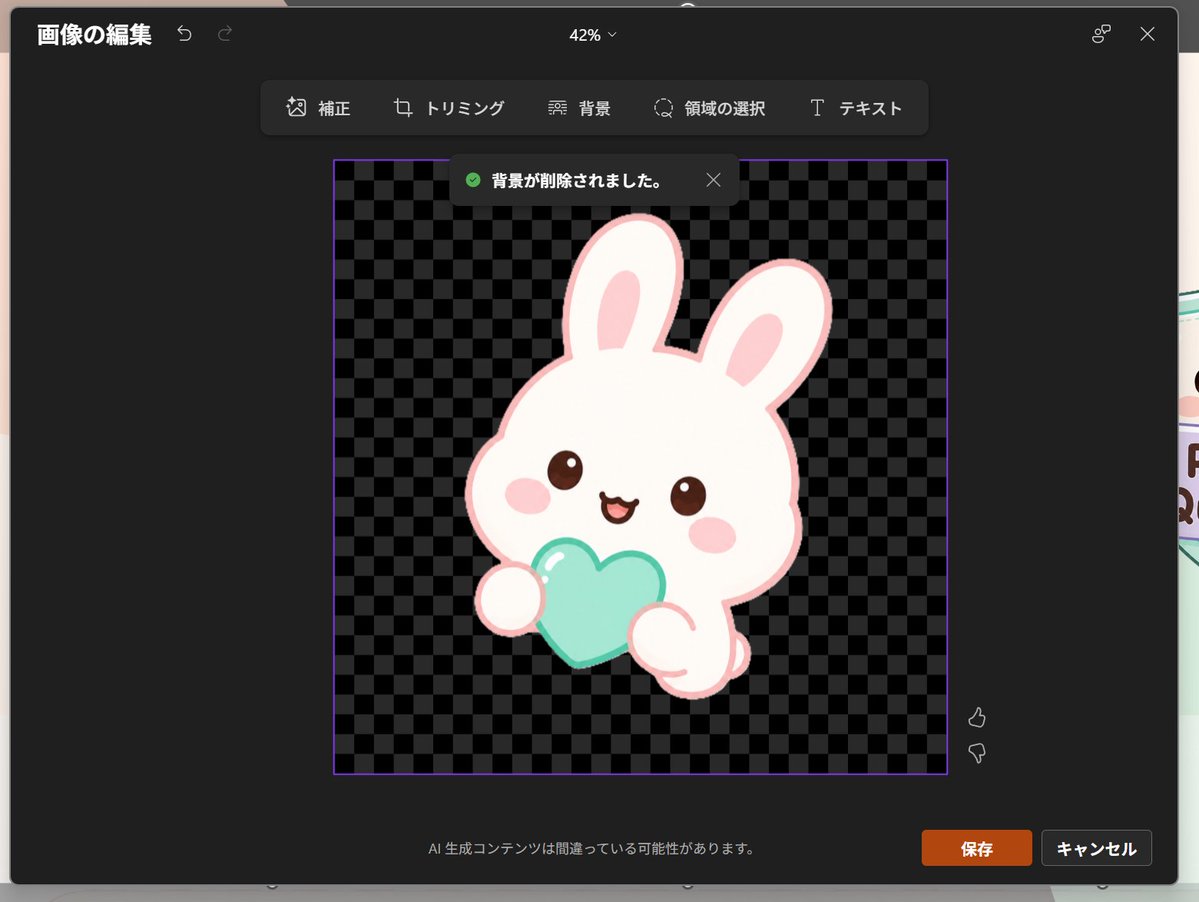
提示詞/GPT Image 提示詞/提示詞詳細資料圖片提示詞日式 PowerPoint 兔子圖示編輯器第 1 張圖片,共 2 張生成一張深色日式 PowerPoint 風格影像編輯截圖,包含透明背景的可愛兔子圖示,適合 UI 模型與簡報視覺。此提示詞使用了參考圖片立即使用讚19瀏覽1,477收藏3儲存此提示詞或分享給朋友。分享提示詞提示詞複製Goal: Create a realistic screenshot of a dark-themed PowerPoint-style image editing window in Japanese, showing a cute dreamy kawaii icon after background removal. Canvas: 1024×768 landscape screenshot with a dark charcoal modal editor centered on screen, rounded corners, subtle shadow, and a faint glimpse of the underlying slide behind the modal edges. The interface zoom indicator at the top center reads “42%”. Layout: At the top left, show the Japanese title “画像の編集” with two small undo/redo arrow icons. At the top right, show a small connected-dots icon and an X close icon. Below the top bar, center a floating toolbar with exactly 6 tools labeled: “補正”, “トリミング”, “背景”, “領域の選択”, “テキスト”, plus their small simple line icons, arranged horizontally in dark rounded rectangles. Main editing area: In the center, place a square image area outlined with a thin purple border. Inside it, use a black and dark-gray checkerboard transparency pattern. Near the top of this square, show a dark notification toast with a green check icon and the Japanese text “背景が削除されました。” plus a small X close icon. Subject details: Center the icon inside the checkerboard square: one pastel yume-kawaii white rabbit mascot with a thick pale pink outline, oversized rounded head, two long upright ears with pink inner ears, small brown glossy eyes, pink oval blush cheeks, and a happy open mouth. The bunny holds exactly 1 mint-aqua heart-shaped object in front of its body with two rounded paws visible. Add soft highlights on the heart and a clean sticker-like vector style with no harsh shadows. The character should feel like a cute app icon or sticker. Use {argument name="character" default="a white kawaii rabbit"}, {argument name="held object" default="a mint-aqua heart"}, and {argument name="accent color" default="pale pink"}. Footer and controls: At the bottom center of the modal, show the small Japanese warning text “AI 生成コンテンツは間違っている可能性があります。” At the bottom right, show exactly 2 buttons: an orange “保存” button and a dark gray “キャンセル” button. Near the right side of the image area, include exactly 2 small vertical feedback icons: thumbs up above thumbs down. Visual style: Realistic software screenshot, crisp UI text, dark Microsoft-style interface, clean Japanese typography, transparent-background checkerboard, cute pastel sticker art. Keep the composition faithful to a PowerPoint built-in image editor after background removal, not a standalone illustration.展開提示詞